Audimation Services has been acquired by Caseware International Learn More.

X
Icon


Blog Image

Reusing IDEA Dashboards

Tech Tip for Reusing Dashboards for Other Projects


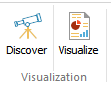
IDEA 10 Visualization ButtonsWe had an interesting question posted to us recently. Can the dashboards created in one IDEA project be reused in another IDEA project?

The answer is, well, no – but sometimes, yes.

Generally, the dashboard in one IDEA project is using database files and fields that are not in other IDEA projects. The dashboards would not be compatible. But in some cases, yes, the dashboards could be reusable. If you are looking at basically the same data but in different data ranges, then you may be able to reuse an existing dashboard.

The key question to ask yourself is this: Do both IDEA projects have databases with the same fields and data types? If the answer is yes, then you can save time and improve your efficiency by reusing dashboards created in the previous project. For example, if you are performing a routine analysis that you do every month or every year, you might find it handy to reuse the dashboards.


How?


In our example, we analyzed an accounts payable file from the year 2005 and created a set of dashboard panels. That was “Project 1.” Now we want to analyze the accounts payable file from the same enterprise system, but for the year 2006. This will be “Project 2.” The two IDEA databases contain the same fields, just different transaction records.

2005 & 2006 AP Trans Database


STEPS:


  • In your first project, create the initial dashboard and save it.
    • The dashboard will save in this subfolder of the current IDEA prjoect: Visualization.ILB
    • The file extension will be ".idash".
  • Next, create the new IDEA project and import the same files using the same file name, but using data from a different date range.
    • Reminder: the IDEA database's file name, field names and data types must match those used to create the initial dashboard.
    • NOTE: It is likely you will not want to import the data using exactly the same name between two projects. In our example, we have "AP Trans 2005 Database" in one project and "AP Trans 2006 Database" in the second project. In the second project, we performed a quick direct extraction using no criteria and including all fields on the AP Trans 2006 Database, naming the output "APTrans 2005 Database." This gave us a file in the second project having the same file name, fields, and data types as that used to create the dashboard initially.
  • Using Windows Explorer, navigate to the first project where the dashboard was created, then navigate to the Visualization.ILB folder inside that project
  • Find the desired dashboard’s “.idash” file and copy it. 
  • Paste the .idash file in the new project’s Visualization.ILB folder
  • In the new project, click Dashboards on the Visualization tab. 
  • Click the Home icon found in the upper left hand corned.

Select a Dashboard Screenshot

  • Double-click the dashboard you wish.  The view will refresh after a few seconds and display the new data in the views you created in the first project.  You will now be able to see the updated information.

Again –the new project must contain databases that use exactly the same files names, fields, and data types as the initial project in which the dashboard was first created. 

If you have questions about this, or other IDEA functions, please give our help desk a call at

888-641-2800 Option 4.  Or email us at [email protected]


CaseWare IDEA , Tech Tip


Posted By

By IDEA Help Desk Team
The IDEA Help Desk is staffed by CIDA-certified data analytics experts. Our team has one goal - to help you get the most from IDEA. In addition to providing one-on-one support for using any IDEA feature or function, they also provide Tech Tips to keep your skills sharp.


Related Posts
No Image
Jul 21 Oct 2020, shortly after the release of IDEA 11.2 – CaseWare posted a new SmartAnalyzer app to Passport, CWI Utilities. The Utilities app offered a bundle of 1...
Tech Tip: IDEA 11 Labs: FINDING GET NEXT, GET PREVIOUS RECORDS
Nov 24 IDEA has @GetNextValue() and @GetPreviousValue() functions, however, there may be times that you require something slightly different. In this scenario, the use...
Make Data Green - Put Your Data to Work
Nov 07 Seeing data as a table and immediately being able to glean needed information has become a staple in our society. Data visualization is so important that it’s...
BROWSER NOT SUPPORTED

This website has been designed for modern browsers. Please update. Update my browser now

×