X

Audimation Services has been acquired by Caseware International Learn More.

One of the best features in IDEA is that the data you import is record-locked. In other words, you cannot accidentally overtype the source data. Sometimes, say when you import a particularly nasty .pdf file, that great feature is a hindrance because the data imports correctly in most cells, but corrupts in a few cells. It would be nice if you could simply overtype the data and correct the few cells. While you can’t actually do that in IDEA, you can add an editable field in which you could enter the correct data.
Here’s how you can go from “7E877.69” to “73,877.69”.

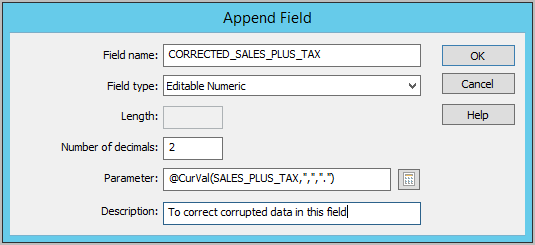
Enter a name in Field name. It cannot be the same as any other field in the database.
Click the drop down for Field type and choose Editable Numeric.
Enter 2 for the Number of decimals. Click the Equation Editor icon to bring up the Equation Editor. In this example, the native field, SALES_PLUS_TAX, imported as a character field; so @CurVal was used to convert the data to numbers. Anywhere there are characters mixed into the numbers will display as an Error in the new field.
Click OK to create the new field.
The red “Error” stands out against the rest of the data, making it easy to find and correct any corrupted data.

To correct, just type the correct amount into the editable cell.

Once you create an editable field, you cannot modify the formula used to create it. If you made an error, you’ll need to recreate the editable field.
There are four ways you can add an editable field:
There are four editable field data types:
If you have questions about this, or other questions about IDEA, please give our help desk a call at 888-641-2800 Option 4. Or email us at [email protected]


This website has been designed for modern browsers. Please update. Update my browser now